fzf
General
Finder Keybindings
Enter - Accept the current item and exit
Ctrl + c or Ctrl + g or Esc - Abort
↑ or Ctrl + k or Ctrl + p - Move the cursor up
↓ or Ctrl + j or Ctrl + n - Move the cursor down
Tab - Toggle the selection and move down (multi-select mode)
Shift + Tab - Toggle the selection and move up (multi-select mode)
PgUp / PgDn - Scroll the list a page up / down
Shift + ↑ / Shift + ↓ - Scroll the preview up / down
Ctrl + l - Redraw the screen
Query Editing
Ctrl + a / Ctrl + e - Move to the beginning / end of the query
Ctrl + b / Ctrl + f - Move one character backward / forward
Alt + b / Alt + f - Move one word backward / forward
Ctrl + h or Backspace - Delete the character before the cursor
Del - Delete the character under the cursor
Ctrl + w - Delete the word before the cursor
Alt + d - Delete the word after the cursor
Ctrl + u - Delete the whole query before the cursor
Ctrl + y - Paste (yank) the deleted text
Search Syntax
fzf uses an extended-search mode by default. A query is split into space-separated terms; each term is an AND condition and can use the following operators:
sbtrkt - Fuzzy-match items that match sbtrkt
'wild - Exact-match items that include wild
^music - Prefix-exact-match items that start with music
.mp3$ - Suffix-exact-match items that end with .mp3
!fire - Inverse-exact-match items that do not include fire
!^music - Inverse-prefix-exact-match
!.mp3$ - Inverse-suffix-exact-match
foo bar - AND: items that match both foo and bar
.md$ | .txt$ - | acts as an OR operator between terms
zsh Integration
Add the following to your .zshrc to set up the key bindings and
fuzzy completion for zsh (fzf 0.48+):
eval "$(fzf --zsh)"
Ctrl + t - Paste the selected files and directories onto the command line
Ctrl + r - Search through the command history and paste the selected command
Alt + c - cd into the selected directory
Fuzzy Completion
The trigger sequence ** followed by Tab starts fuzzy completion
for the current word:
vim **+Tab - Complete files and directories
cd **+Tab - Complete directories only
kill -9 +Tab - Complete process IDs
ssh **+Tab - Complete host names
export **+Tab or unset **+Tab - Complete environment variables
unalias **+Tab - Complete aliases
Environment Variables
FZF_DEFAULT_COMMAND - Default command used to feed the input list
FZF_DEFAULT_OPTS - Default options passed to every fzf invocation
FZF_DEFAULT_OPTS_FILE - File that contains the default options
FZF_CTRL_T_COMMAND / FZF_CTRL_T_OPTS - Command / options for Ctrl + t
FZF_CTRL_R_OPTS - Options for Ctrl + r
FZF_ALT_C_COMMAND / FZF_ALT_C_OPTS - Command / options for Alt + c
Configuration
My fzf setup in
.zshrc
enables the zsh integration, uses fd as the default command and
applies the Catppuccin Macchiato colors:
eval "$(fzf --zsh)"

export FZF_DEFAULT_COMMAND='fd --full-path --hidden \
  --color never --type f --exclude .git \
  --exclude node_modules --exclude dist \
  --exclude .DS_Store'

export FZF_DEFAULT_OPTS='--bind ctrl-p:toggle-preview \
  --bind ctrl-d:half-page-down \
  --bind ctrl-u:half-page-up \
  --bind ctrl-f:preview-half-page-down \
  --bind ctrl-b:preview-half-page-up \
  --bind home:preview-top \
  --bind end:preview-bottom \
  --color=fg:#cad3f5,fg+:#cad3f5,bg+:#363a4f,border:#6e738d,label:#6e738d,bg:#24273a,spinner:#c6a0f6,hl:#ed8796,hl+:#ed8796,header:#ed8796,info:#c6a0f6,pointer:#c6a0f6,marker:#f4dbd6,prompt:#c6a0f6'
Scripts
General
A collection of custom fzf-based scripts to interactively browse and act on files, Kubernetes resources, Jira work items, Vault secrets and GitHub pull requests, issues and notifications.
Run any script with -h / --help to see its full usage.
Ctrl + r - Reload list
Ctrl + p - Toggle preview
Down or Ctrl + j - Scroll down
Up or Ctrl + k - Scroll up
Ctrl + d - Scroll half page down
Ctrl + u - Scroll half page up
Ctrl + f - Scroll preview half page down
Ctrl + b - Scroll preview half page up
Home - Scroll preview to top
End - Scroll preview to bottom
Alt + h - Show help
fzfe - File Explorer
fzfe [directory] - Browse files and directories, with a preview of
folder contents and syntax-highlighted files.
Enter - Open file / enter directory
Alt + y - Copy absolute paths of the selection to the clipboard
Alt + c - Mark selection to be copied
Alt + m - Mark selection to be moved
Alt + p - Paste copied / moved selection into the current directory
Alt + n- Create new file / directory
Alt + r - Rename item under the cursor
Alt + d - Delete selection
Alt + s - Toggle sort order
fzfrclone - Object Storage
fzfrclone - Browse the local filesystem and rclone remotes (S3,
Azure Blob, GCS, ...) in a single pane and copy / move files between
any of them: local <-> remote, remote <-> remote, local <-> local.
The top-level view lists your configured rclone remotes plus a
local/ entry.
Enter - Enter directory / remote, or open file
Alt + y - Copy full path(s) of selection to the clipboard
Alt + c - Mark selection to be copied
Alt + m - Mark selection to be moved
Alt + p - Paste copied / moved selection into current location
Alt + r - Rename item under the cursor
Alt + k - Create new directory in current location
Alt + d - Delete selection
fzfk - Kubernetes
fzfk <resource> [kubectl get args...] - Browse Kubernetes
resources; the list refreshes every 5 seconds.
Enter - Describe the resource under the cursor
Alt + p - Port-forward
Alt + x - Exec into container
Alt + l - Show container logs
Alt + y - Open manifest
Alt + e - Edit manifest
Alt + d - Delete marked resources; the confirmation offers a force option (--grace-period=0 --force)
Alt + w - Enable / disable watch mode (refresh every 5 seconds)
fzfjira - Jira
fzfjira [JQL] - Browse Jira work items via acli; without a JQL a
picker of named filters is shown.
Enter - View work item
Alt + a - Assign work item
Alt + t - Transition work item
Alt + c - Add comment to the work item
Alt + e - Edit work item
Alt + p - Set / change the work item's parent epic
Alt + f - Flag / unflag the work item
Alt + n - Create new work item
Alt + l - Manage links; Enter open linked work item; Alt + d delete link; Alt + n create new link
Alt + s - Show work item's sub-tasks in a nested picker
Alt + o - Open work item in the web browser
Alt + y - Copy work item url to the clipboard
fzfvault - Vault
fzfvault - Drill down into the paths of a Vault kv secrets engine
(v1 and v2 are auto-detected).
Enter - Open folder / view secret
Alt + e - Edit secret
Alt + n - Create new secret
Alt + r - Rename / move secret
Alt + d - Delete secret
Alt + y - Yank one field's value to the clipboard
Alt + o - Open secret / folder in the Vault web UI
Esc - Go up one level (at the root, back to the mount picker)
fzfgh - Notifications
fzfgh - Browse your GitHub notifications (the default view).
Enter - Open notification
Alt + d - Mark selected notifications as done
Alt + e - Mark selected notifications as read
Alt + o - Open notification in the web browser
Alt + y - Copy notification url to the clipboard
fzfgh - Pull Requests
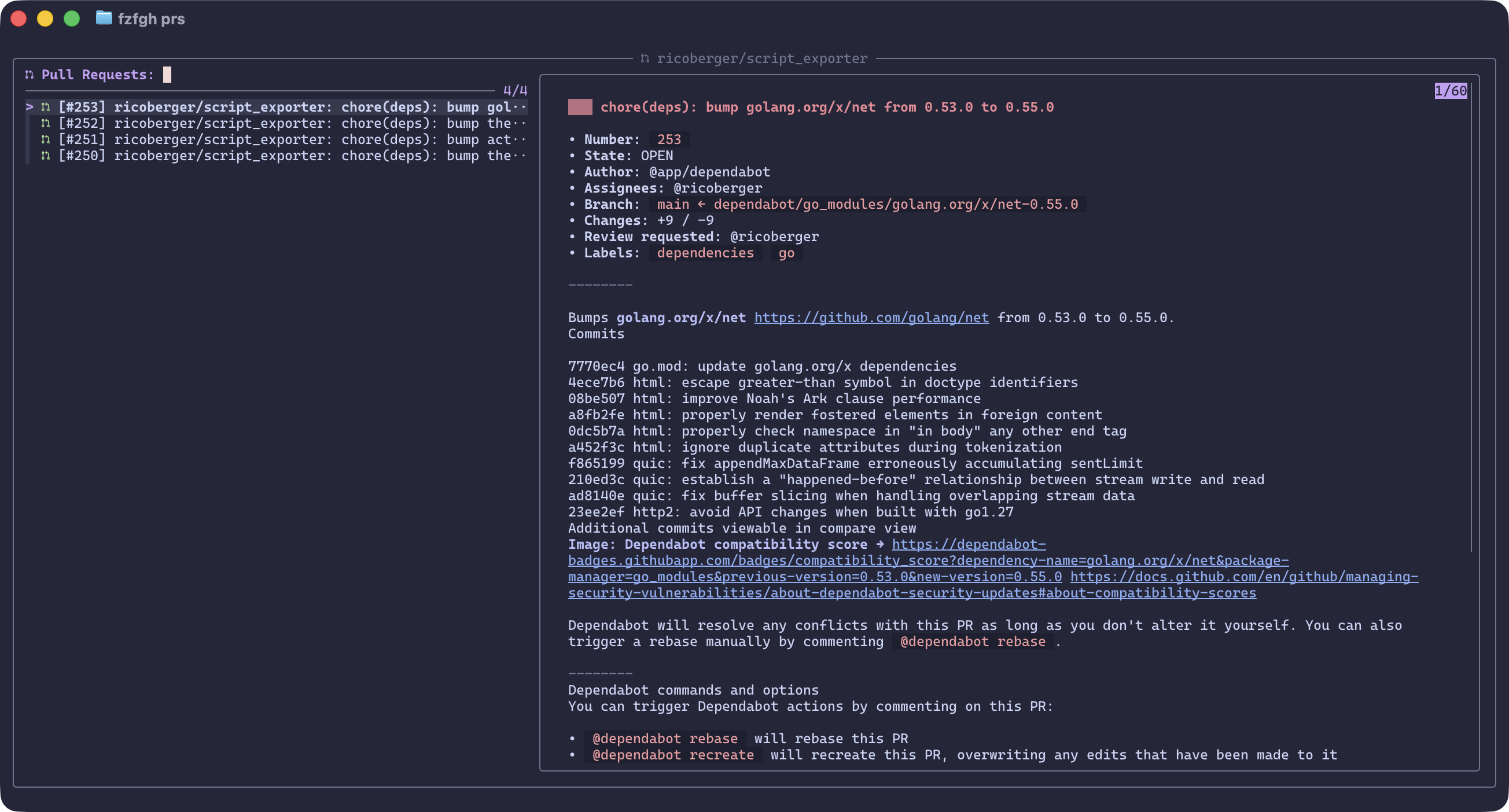
fzfgh prs - Pick a filter, then browse the matching pull requests.
Enter - Open preview (details, description, checks, comments) in nvim
Alt + o - Open pull request in the web browser
Alt + y - Copy pull request url to the clipboard
Alt + m - Merge pull request (merge / squash / rebase, with/without admin; edit the commit subject & body in nvim)
Alt + l - Add / remove label
Alt + a - Assign pull request to me
Alt + e - Edit pull request title and body
Alt + c - Add a comment
Alt + x - Close pull request (close / and delete branch / with comment / with comment and delete branch)
Alt + k - Show checks; Enter view job summary and logs; Alt + r rerun failed job; Alt + o open check in the web browser
Alt + w - Toggle draft / ready for review
Alt + v - Review pull request (approve / comment / request changes)
Alt + q - Request a review (suggested + assignable reviewers)
Alt + d - Browse pull request diff hunk-by-hunk in fzf (shows the hunk and its review threads with resolved state); Alt + o open in the web browser; Alt + y yank path to file; Alt + r reply to thread; Alt + x resolve / unresolve thread; Alt + c new thread on a line or range (nvim opens pre-filled with a suggestion block)
Alt + s - Show commits; Enter view commit details and diff; Alt + o open commit in the web browser; Alt + y copy commit sha to the clipboard
Alt + g - Check out pull request and open nvim with :GitDiff command (current repo only, requires a clean worktree)
fzfgh - Issues
fzfgh issues - Pick a filter, then browse the matching issues.
Enter - Open preview (details, description, comments) in nvim
Alt + o - Open issue in the web browser
Alt + y - Copy issue url to the clipboard
Alt + l - Add / remove a label
Alt + a - Assign issue to me
Alt + e - Edit issue title / body
Alt + c - Add a comment
Alt + x - Close the issue (completed / not planned / duplicate)